
How to Get a YouTube Video Transcript: Free & Fast Methods for 2026
Learn multiple ways to extract YouTube video transcripts, from built-in features to AI tools. Get accurate text for content creation, accessibility, and research.
AudioScribe Editorial Team
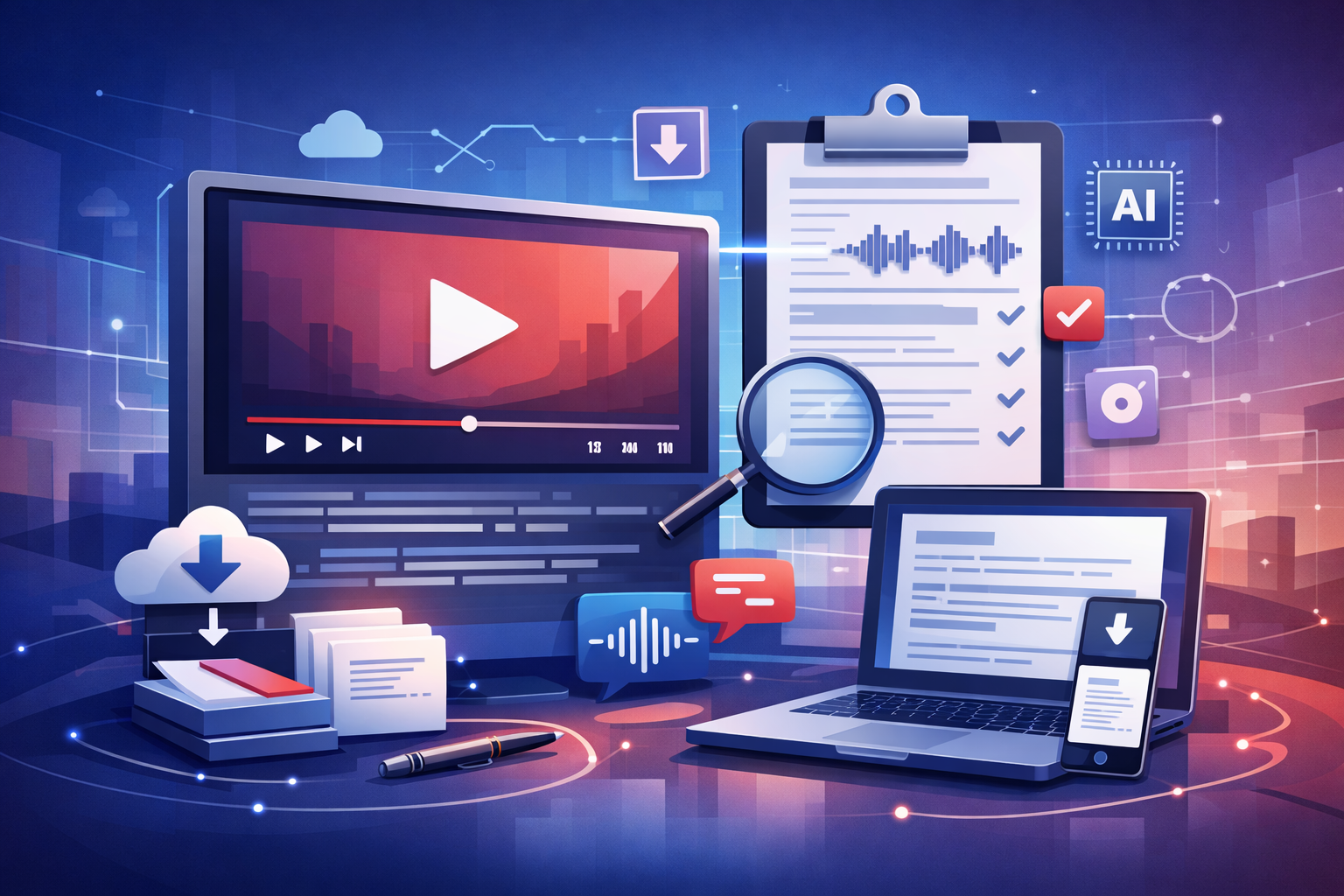
Comparison: YouTube Native vs Third-Party vs AI Tools
When learning how to get YouTube video transcripts, you'll encounter three main categories of solutions. Each has distinct advantages depending on your needs for accuracy, speed, and functionality.
YouTube's native transcript feature is the most accessible option, available directly on the platform without additional software. It works best for videos that already have captions uploaded by creators or generated automatically. The interface is straightforward: click the three dots below the video, select "Show transcript," and you can view and copy the text. However, this method has limitations—you can't edit timestamps easily, export formats are limited, and accuracy depends entirely on the original caption quality.
Third-party browser extensions and websites offer more flexibility than YouTube's built-in tool. These services typically provide additional export options (like TXT, SRT, or VTT files), better formatting controls, and sometimes basic editing capabilities. They're useful when you need slightly more functionality than YouTube provides but don't require professional-grade accuracy. Most work by accessing the same caption data YouTube uses, so they don't improve accuracy but do enhance usability.
AI transcription tools represent the most advanced approach to how to get YouTube video transcripts. Services like AudioScribe analyze the actual audio from videos using speech recognition technology, which can produce more accurate results than relying on existing captions. These tools often include features like speaker identification, punctuation correction, and vocabulary customization. They're ideal for content creators who need polished transcripts for articles, researchers analyzing video content, or anyone requiring high accuracy. For comprehensive audio processing solutions, explore our tools page for various conversion options.
YouTube transcript interface example
Why Extract YouTube Transcripts?
Content Repurposing
Transform video content into blog posts, social media captions, or documentation without starting from scratch.
Accessibility Compliance
Create accurate captions for hearing-impaired viewers or meet regulatory requirements for published content.
Research & Analysis
Analyze spoken content quantitatively or qualitatively by working with searchable, editable text versions.
Language Learning
Use transcripts as study materials for improving listening comprehension and vocabulary in different languages.
Transcript Method Comparison
Evaluate different approaches to how to get YouTube video transcripts based on key factors.
| Method | Cost | Accuracy | Export Options | Best For |
|---|---|---|---|---|
YouTube Built-in | Free | Variable (depends on source) | Copy-paste only | Quick reference, casual use |
Browser Extensions | Free/Freemium | Same as YouTube | TXT, SRT, VTT | Basic editing, format needs |
Online Converters | Free/Premium | Good (AI-enhanced) | Multiple formats | Regular users, content creators |
AI Services | Premium | Excellent (95%+) | DOCX, PDF, SRT, etc. | Professional use, high accuracy |
Step-by-step transcript extraction
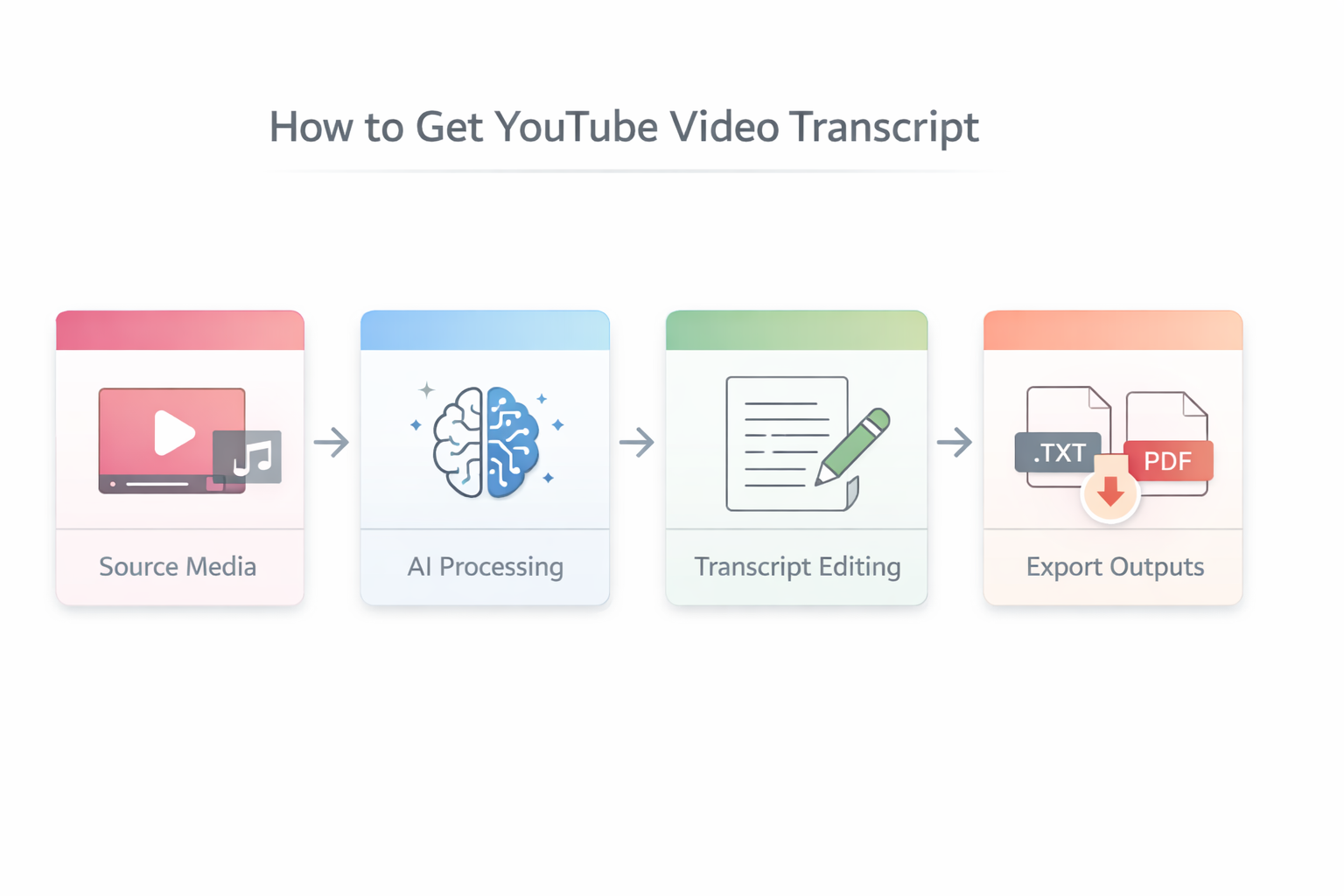
AI transcription process visualization
- YouTube Built-in Transcript Feature: This method works directly within YouTube's interface. First, navigate to the video you want to transcribe. Below the video player, click the three-dot menu (more options). Select 'Show transcript' from the dropdown menu. The transcript panel will appear beside the video, showing text synchronized with playback. You can copy the entire transcript by selecting all text (Ctrl+A or Cmd+A) and copying (Ctrl+C or Cmd+C). Note that this only works if the video has captions available—either uploaded by the creator or auto-generated by YouTube.
- Using AudioScribe for YouTube Links: For more advanced needs, specialized tools offer enhanced functionality. With AudioScribe, start by copying the YouTube video URL. Visit the AudioScribe platform and paste the link into the designated input field. Select your preferred language and any specific processing options. The system will analyze the audio and generate a transcript with improved accuracy over YouTube's auto-captions. You can then edit the text directly in the interface, correct any errors, and format the document before exporting. This method is particularly useful for videos without existing captions or when you need higher precision.
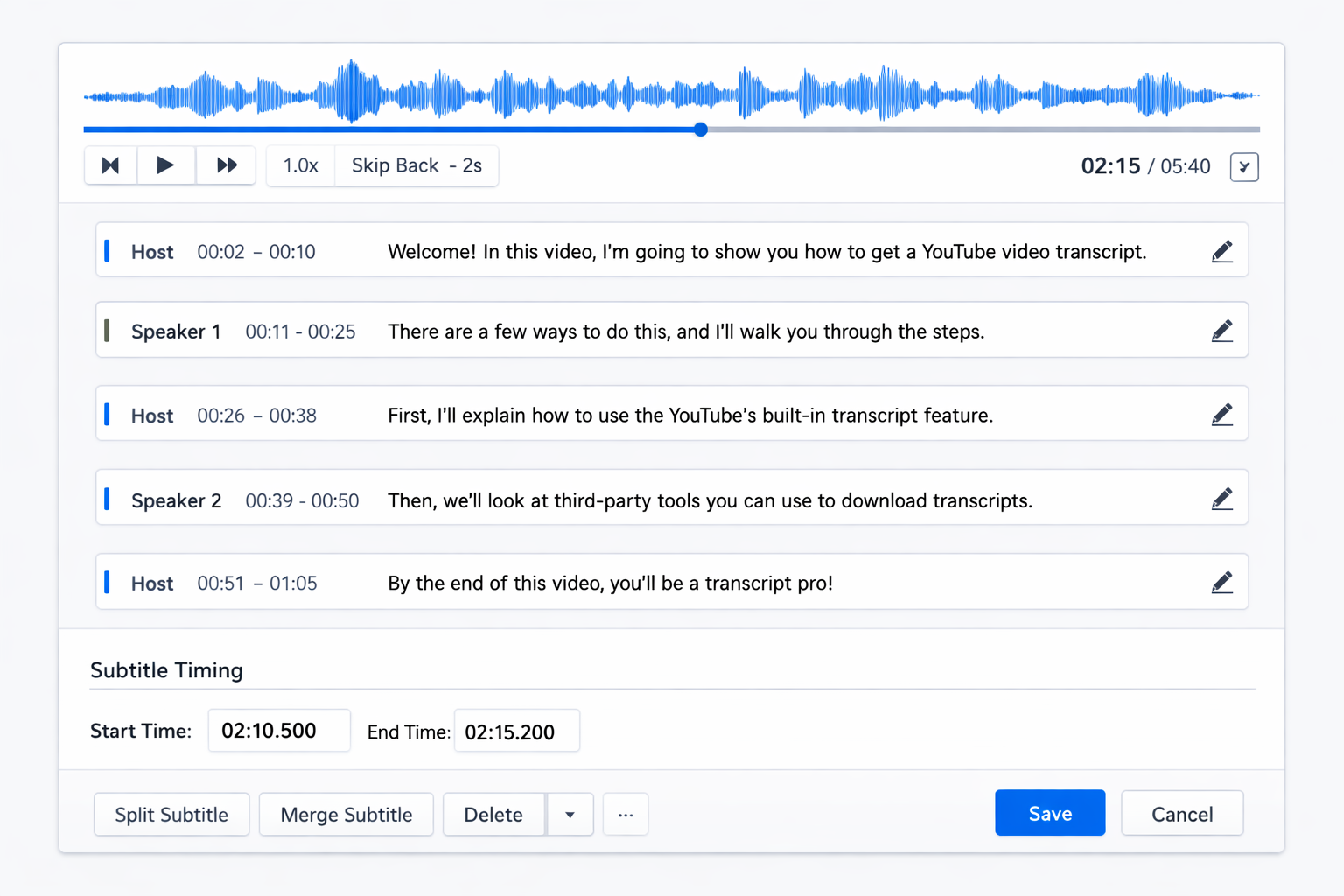
- Editing and Exporting Transcripts: Once you have your transcript, proper editing ensures usability. Review the text for accuracy, correct any misinterpreted words, and add proper punctuation if missing. For longer videos, consider dividing the transcript into sections with timestamps or speaker labels. Most tools allow exporting in various formats: plain text for simple use, SRT or VTT for video captions, or formatted documents like DOCX for publishing. Choose the format based on your end use—SRT files work best for re-uploading to YouTube, while DOCX is ideal for content repurposing.
- Accuracy Tips and Language Support: Maximize transcript quality by starting with clear audio sources. Videos with background noise or multiple speakers may require manual corrections. For AI tools, selecting the correct language model improves accuracy significantly—most services support dozens of languages and dialects. Enable vocabulary customization if available, especially for technical terms or proper nouns. Remember that auto-generated transcripts typically achieve 80-90% accuracy, while AI-enhanced services can reach 95% or higher with proper configuration.
Important Consideration
Always respect copyright and fair use when extracting transcripts from videos you don't own. Transcripts should be used for personal reference, accessibility, or transformative purposes like criticism or research, not for redistributing content without permission.
Expert Insight
According to content strategy professionals,
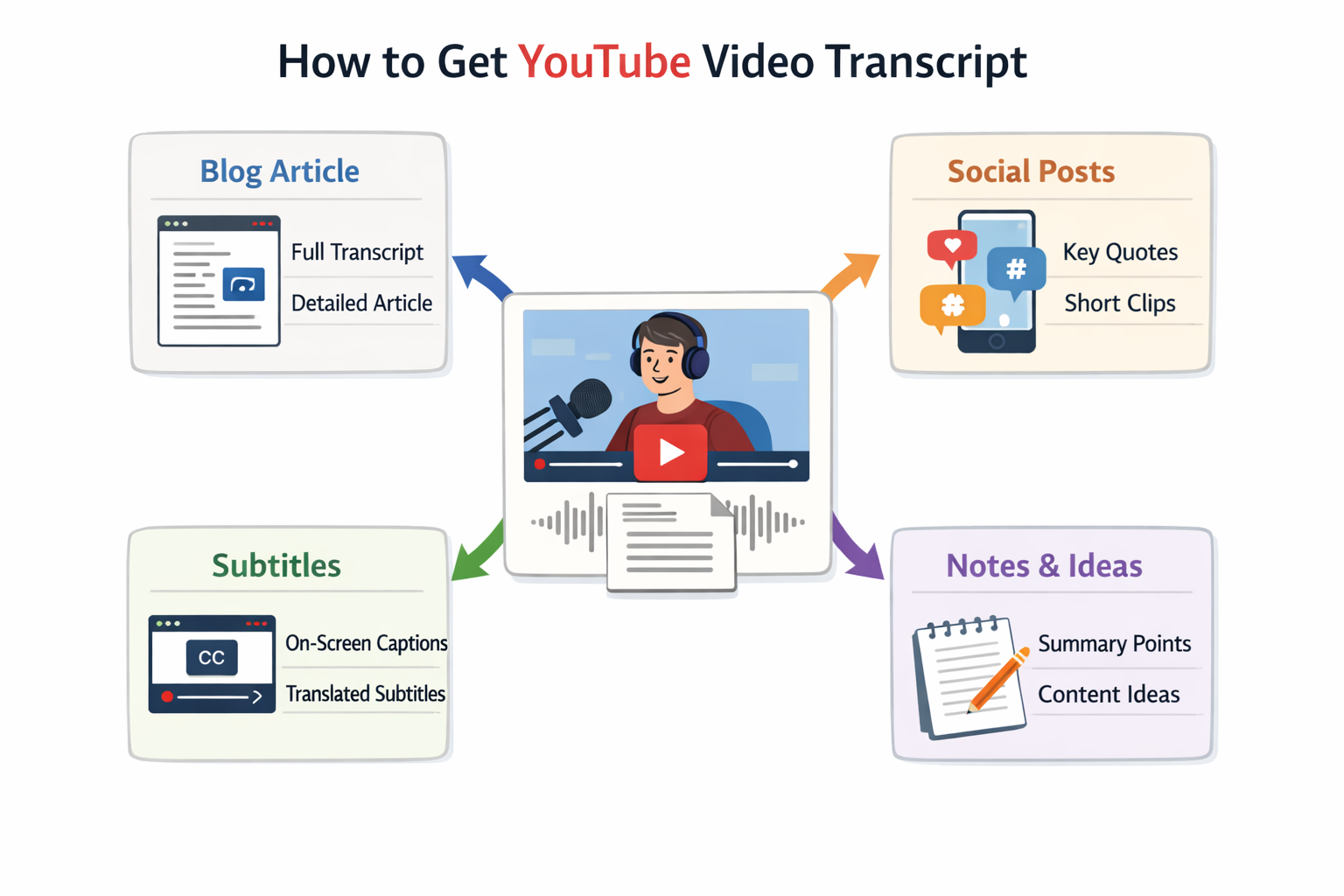
Transcripts are no longer just accessibility features—they're content goldmines. A single video can yield blog posts, social snippets, email newsletters, and documentation with minimal additional effort.
This makes learning how to get YouTube video transcripts efficiently a valuable skill for modern content workflows.
Transcript editing interface
FAQ: Common Questions About YouTube Transcripts
Can I get transcripts from private YouTube videos? Generally, no—most methods require public access to video content. Private or unlisted videos typically don't allow transcript extraction through standard tools unless you're the owner with appropriate permissions.
Are downloaded transcripts accurate? Accuracy varies significantly. YouTube's auto-generated captions are approximately 80-90% accurate for clear English speech but less reliable for accented speech, technical terms, or multiple speakers. AI-enhanced services improve this to 95%+ for optimal conditions. Always review and edit important transcripts.
What's the difference between transcripts and closed captions? Transcripts are plain text versions of spoken content, while closed captions include timing information for synchronization with video playback. Many tools can convert between these formats, and knowing how to get YouTube video transcripts often includes caption generation options.
Is transcript extraction legal? For personal use, research, criticism, or accessibility purposes, transcript extraction generally falls under fair use. However, redistributing full transcripts of copyrighted content without permission may violate terms of service. Always check specific video permissions and intended use.
Can I get transcripts in languages other than English? Yes, most modern tools support multiple languages. YouTube's auto-captions work for over a dozen languages, while AI services often support 50+. Accuracy varies by language complexity and audio quality.
How long does transcript extraction take? YouTube's built-in method is instantaneous for videos with existing captions. AI processing typically takes 1-5 minutes depending on video length and service capacity. For batch processing or very long videos, some services offer extended processing options.
What file formats are available? Common export formats include plain text (.txt), subtitle files (.srt, .vtt), and document formats (.docx, .pdf). Choose based on your needs: SRT for video re-upload, DOCX for editing, or PDF for sharing final versions.
Ready to streamline your transcript workflow? Start by uploading your first video to experience efficient processing, or explore our complete suite of audio conversion tools for all your transcription needs.