
How to Add Captions to a Video: 5 Easy Methods (2026)
Adding captions to videos improves accessibility, boosts engagement, and helps with SEO. Here are 5 easy methods for any platform or skill level.
AudioScribe Editorial Team
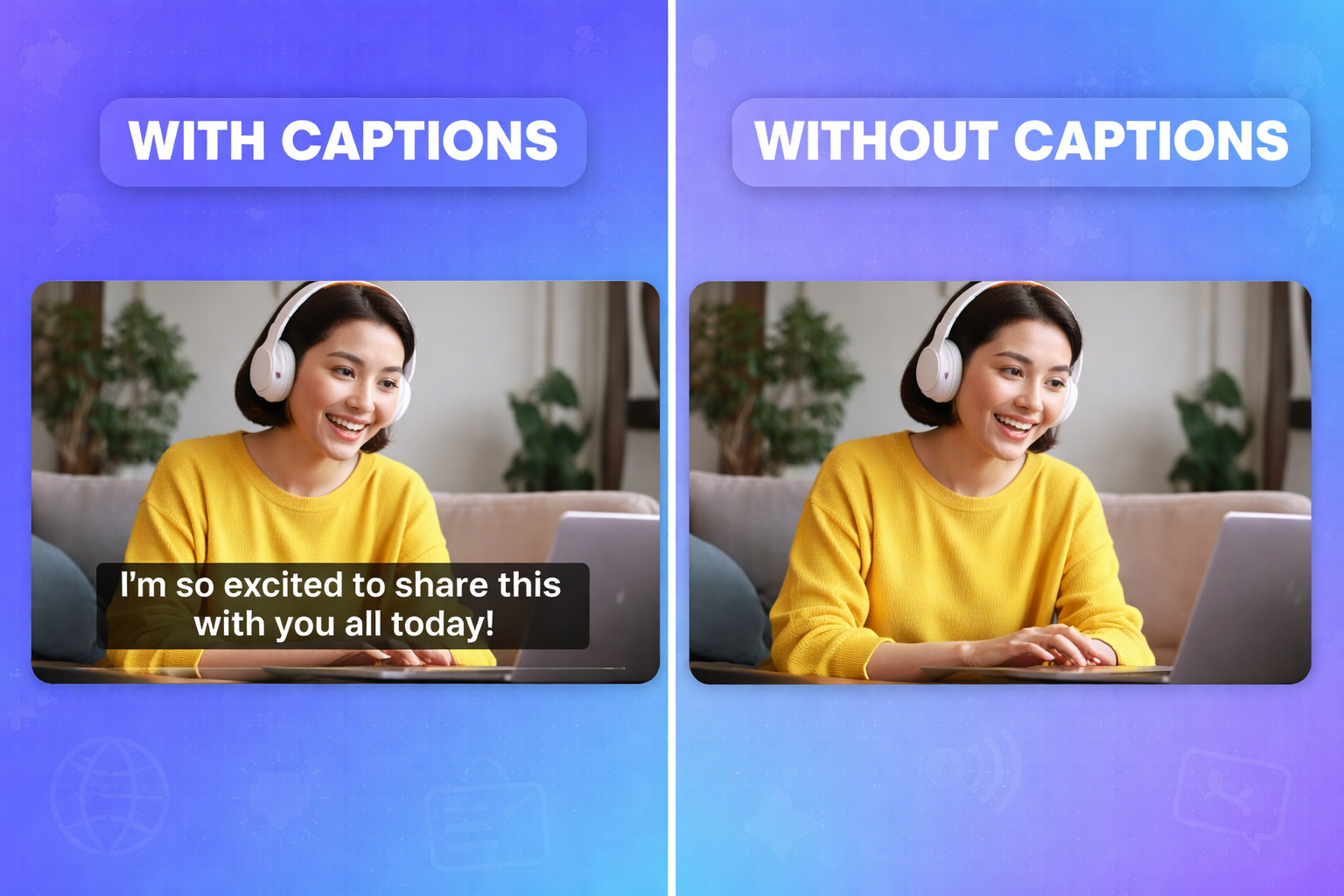
In today's digital landscape, video content is king, but if your videos lack captions, you're missing out on a massive audience and significant benefits. Whether for accessibility, social media engagement, or SEO, knowing how to add captions to a video is a non-negotiable skill for creators, marketers, and businesses. Captions can increase view time by up to 12%, make your content accessible to the deaf and hard-of-hearing community, and are essential for the 85% of videos watched on social media with the sound off.
This guide will walk you through five straightforward methods to caption your videos in 2026, from fully automated tools to professional manual techniques. Let's dive in.
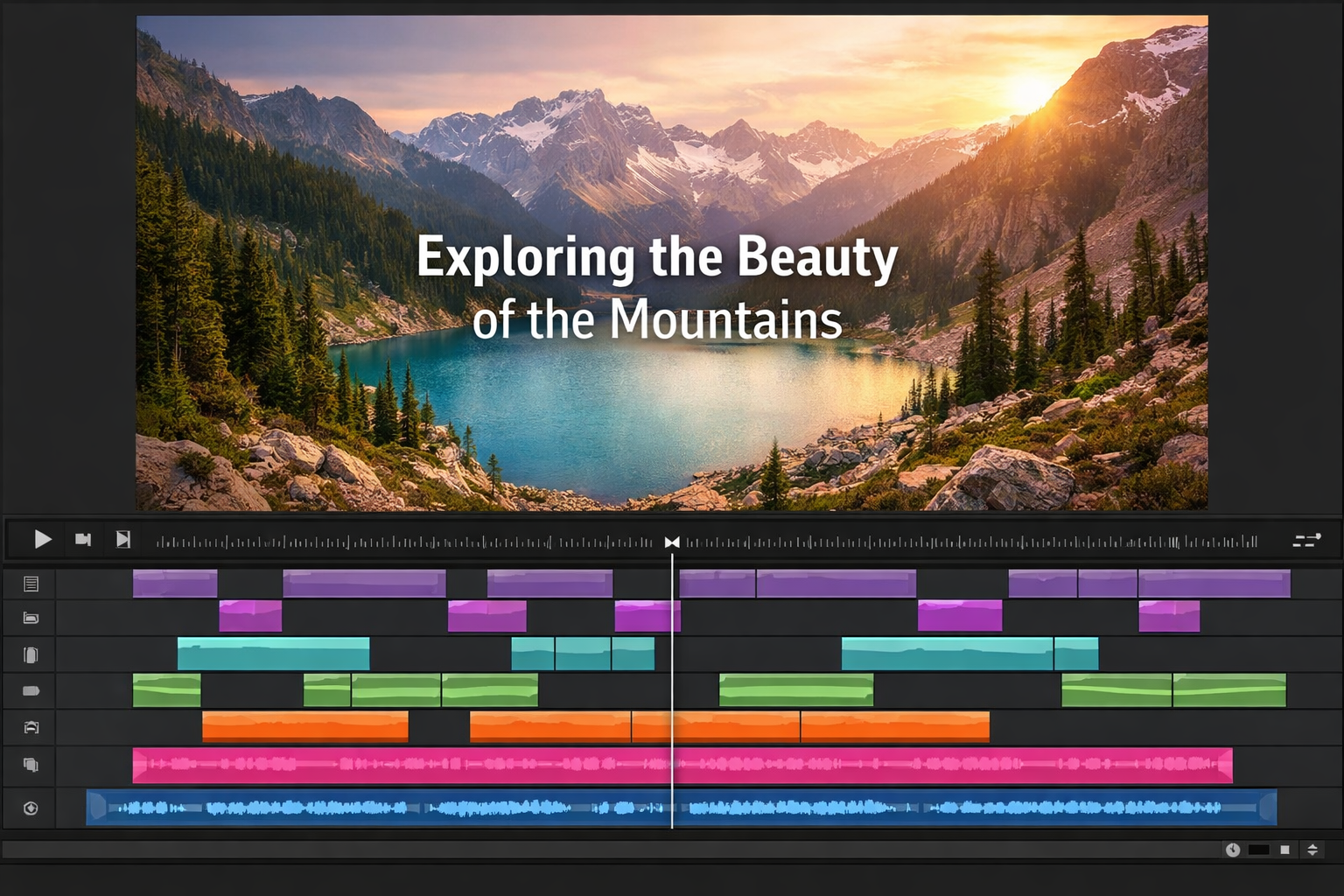
Video editing timeline with caption text overlaid on a video frame
Why Video Captions Are Essential (Beyond Accessibility)
Before we get to the "how," it's worth reinforcing the "why." While accessibility compliance (like ADA and WCAG) is a crucial reason, the advantages of captions extend much further:
- Boost in Engagement and Retention: Viewers are more likely to watch a video to completion if they can follow along silently in noisy environments like offices or public transit.
- Improved SEO: Search engines can't "watch" video, but they can crawl text. Captions provide a rich text transcript that helps your video rank in both video and traditional search results.
- Social Media Algorithm Friendliness: Platforms like Facebook, Instagram, and LinkedIn prioritize videos that keep users on-platform. Captions lead to longer watch times, which signals high-quality content to the algorithm.
- Enhanced Comprehension: Captions aid understanding for non-native speakers and clarify complex terminology or accents, ensuring your message is received by all.
Method 1: Using AI-Powered Transcription Services (Fastest & Most Accurate)
For most creators, AI transcription services offer the perfect balance of speed, accuracy, and affordability. These tools automatically transcribe your video's audio into text with impressive precision, which you can then edit and sync as captions.
How it works:
- Upload your video file (MP4, MOV, etc.) or share a link from YouTube/Vimeo.
- The AI engine processes the audio, generating a transcript in minutes.
- You review and edit the text for any errors (like homophones or technical terms).
- The tool allows you to export the transcript in various caption formats (SRT, VTT) or even a directly captioned video file.
Best for: Podcasters, educators, content marketers, and anyone producing regular video content who values efficiency.
Recommended Tool: For a seamless experience, consider AudioScribe. It specializes in fast, accurate transcription and provides easy-to-edit transcripts that export in all the major subtitle formats needed for platforms like YouTube, Instagram, and professional editing suites.
Method 2: Captioning Directly Within Video Editing Software
If you're already editing your video in a software suite, adding captions within the same ecosystem is a logical workflow. Most professional and consumer-grade editors now have built-in captioning tools.
- Professional Editors (Adobe Premiere Pro, Final Cut Pro, DaVinci Resolve): These offer robust caption tracks. You can often generate transcripts automatically (using integrated AI), then fine-tune timing, fonts, and positions to match your brand. The key advantage is precision and seamless integration with your edited timeline.
- Consumer Editors (CapCut, iMovie, Clipchamp): These tools have made huge strides. CapCut, for instance, offers highly accurate auto-captions with trendy animations. You typically get less formatting control but a much faster, user-friendly process.
How it works:
- Import your edited video sequence into your software.
- Locate the "Text" or "Captions" panel and choose to generate captions automatically (if available) or create a new caption track.
- Type or paste your transcript, syncing each caption block to the audio visually.
- Style your captions using the software's text tools.
Best for: Video editors who want full creative control over caption styling and timing within their primary editing environment.
Method 3: Leveraging Built-in Platform Tools (YouTube, TikTok, etc.)
Major social and video platforms want you to succeed and provide their own (often free) captioning solutions. This is one of the easiest entry points.
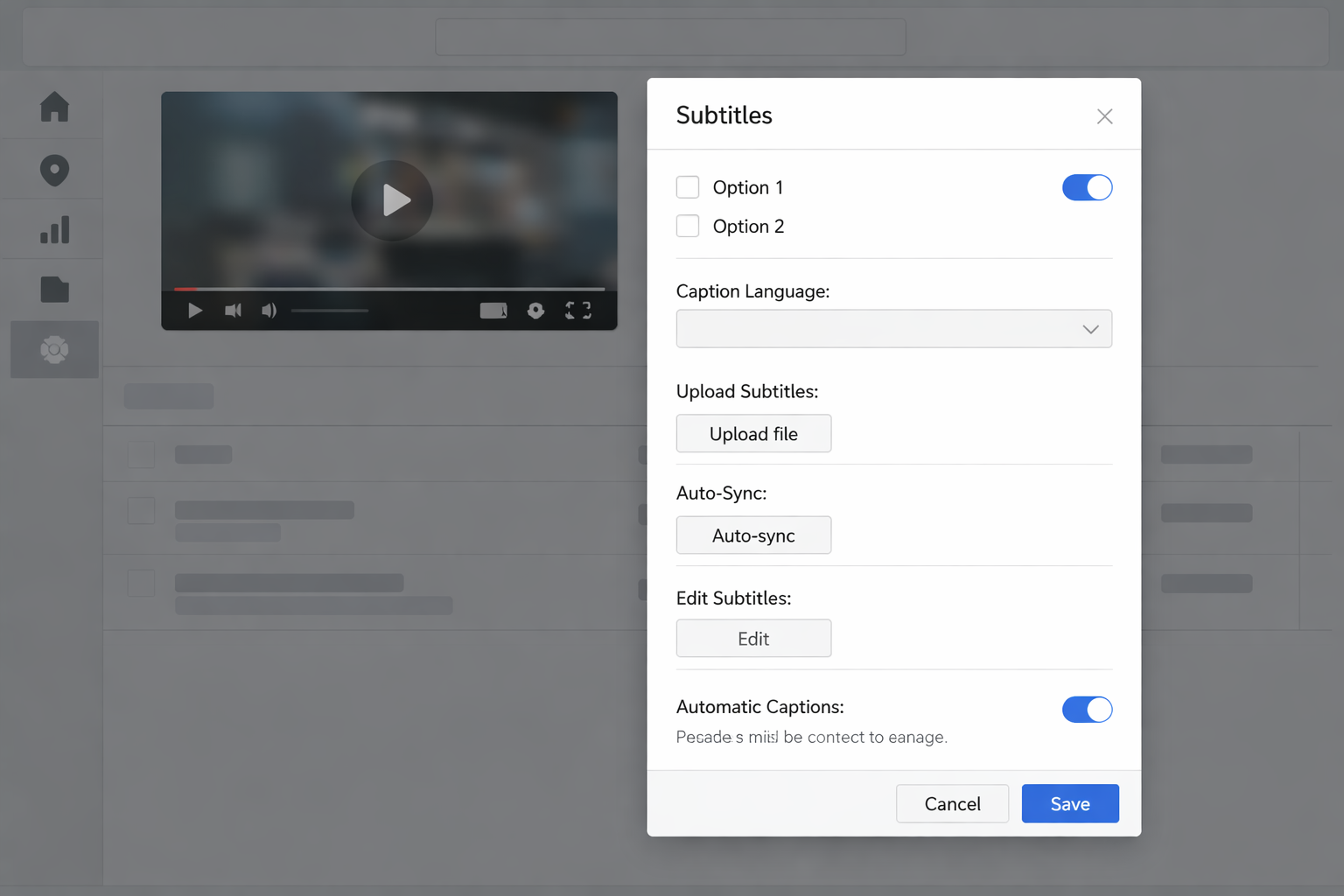
- YouTube Studio: Upload your video, then navigate to "Subtitles." YouTube auto-generates captions with decent accuracy. You can use their subtitle editor to correct errors, adjust timings, and even translate. Once published, viewers can toggle captions on/off.
- Facebook & Instagram: When uploading a Reel or video post, look for the "Captions" toggle or option to generate them automatically. You can edit the auto-generated text before publishing.
- TikTok: The platform's auto-captions feature is central to its user experience. After recording, tap "Captions" to generate them, then edit for accuracy and choose a font style.
How it works:
- Upload your native video to the platform.
- Find the caption/subtitle option in the upload workflow (usually under "Settings" or "Advanced Options").
- Generate, review, edit, and publish.
Best for: Social media managers and creators publishing directly to a single platform who need quick, integrated captions.
How to Add Captions to a Video: 5 Easy Methods (2026)
Method 4: Manual Captioning (For Ultimate Control)
Manual captioning involves creating a SubRip Subtitle (.SRT) file from scratch using a text editor or dedicated software. This method gives you absolute control but is the most time-intensive.
How it works:
- Open a simple text editor (like Notepad or TextEdit) or a free tool like Subtitle Edit.
- Write your transcript, breaking it into logical chunks of 1-2 lines each.
- For each caption block, you must define the precise start and end timecodes in the format
.HH:MM:SS,mmm --> HH:MM:SS,mmm - Save the file with the
extension..srt - Import this SRT file when uploading your video to a platform or into your video editing software.
Best for: Short videos, precise legal or technical content where every word must be verified, or when working with a language that current AI tools don't support well.
Method 5: Outsourcing to a Professional Service
When your project demands 100% accuracy, human touch, and perhaps multiple language translations, hiring a professional captioning service is the best route.
How it works:
- You send your video file to the service.
- A trained transcriptionist/captioner creates a perfectly timed and accurate transcript, noting speaker changes and sound descriptions.
- You receive industry-standard files (SRT, VTT, SCC) and sometimes a directly burned-in video.
Best for: Broadcast television, corporate communications, legal depositions, feature films, and any project with a budget for guaranteed perfection.
Choosing the Right Method for Your Needs
| Method | Speed | Cost | Accuracy | Best Use Case | | :--- | :--- | :--- | :--- | :--- | | AI-Powered Service | Very Fast | Low | High (95%+) | Regular content creation, podcasts, tutorials | | Editing Software | Medium | Included | Varies | Editors wanting stylistic control within their project | | Platform Tools | Fast | Free | Medium-Good | Social media-first content | | Manual | Very Slow | Free | Perfect | Short clips, complex terminology, full control | | Professional Service | Slow (Turnaround) | High | Perfect (100%) | Broadcast, legal, high-stakes corporate content |
Frequently Asked Questions (FAQ)
Q1: What's the difference between captions and subtitles? A: While often used interchangeably, captions (usually "closed captions" or CC) assume the viewer cannot hear the audio. They include dialogue plus non-speech elements like "[music playing]" or "[door slams]." Subtitles assume the viewer can hear but doesn't understand the language, translating only the dialogue.
Q2: What is an SRT file and why is it important? A: An SRT (.srt) file is the most common subtitle file format. It's a plain text file that contains the sequential number of the caption, its start/end timecodes, and the text itself. It's important because it's the universal standard that can be uploaded to almost any video platform or player, keeping the captions separate from the video for easy editing and toggling.
Q3: Can I edit auto-generated captions for mistakes? A: Absolutely, and you should. AI can mishear words, especially with accents, technical jargon, or poor audio quality. Every method that uses auto-generation provides an interface for you to review and correct the text, which is a crucial step for professionalism.
Q4: How do I style my captions to match my brand? A: Styling (font, color, background) is typically done within your video editing software (Method 2) or on some social platforms (like TikTok). When using an SRT file, the styling is often controlled by the video player (e.g., YouTube's caption settings), so for full brand control, you may need to "burn in" styled captions directly onto the video in an editor.
Q5: What's the future of video captioning? A: The trend is toward even more seamless integration. We're seeing real-time, live-stream captions becoming standard, AI that can distinguish between multiple speakers with high accuracy, and platforms automatically translating captions into dozens of languages, making content truly global.
No matter your budget, technical skill, or project scope, there's a perfect method for you to add captions to your video. In 2026, with the wealth of tools available, there's simply no excuse to publish silent video. Starting with an accurate transcript is the foundation of any good captioning workflow, and choosing the right tool can save you hours of manual labor.
Ready to make your videos more accessible, engaging, and discoverable? Try AudioScribe free at AudioScribe and experience how quickly you can turn any video's audio into perfect, editable captions.