
How to Record a Google Meet (2026 Complete Guide)
Recording Google Meet calls lets you revisit discussions and share them with absent teammates. Here is everything you need to know about recording in 2026.
AudioScribe Editorial Team
Showing English content because this locale has no published version yet.
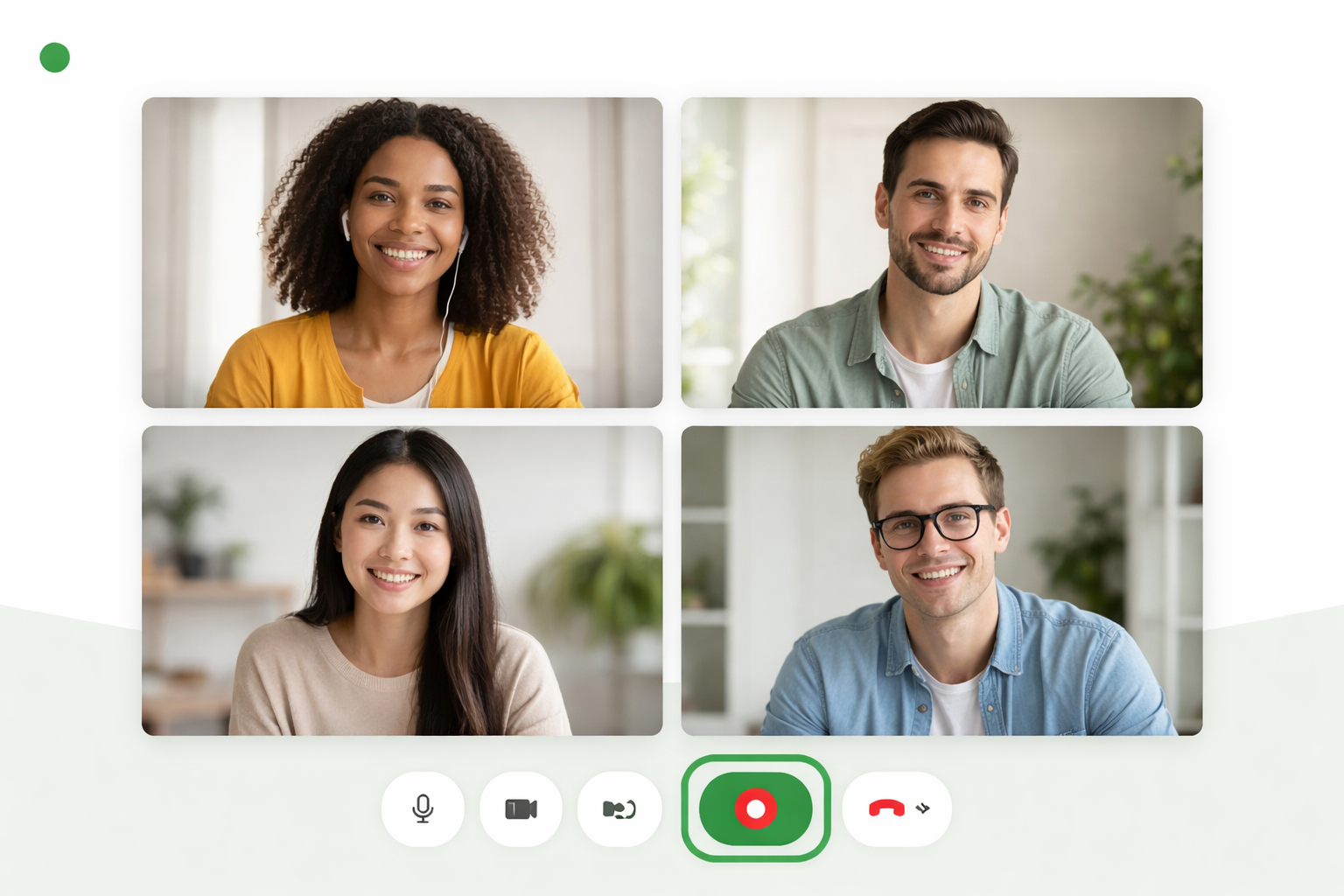
In today's hybrid world, Google Meet has become a cornerstone for virtual meetings, interviews, webinars, and online classes. Whether you need to share the discussion with absent colleagues, create a reference for action items, or archive a training session, knowing how to record a Google Meet is an essential skill. This 2026 guide covers everything you need to know, from permissions and steps to best practices and advanced tools for getting the most value from your recordings.
Google Meet video call interface with a recording indicator and transcript panel
Understanding Google Meet Recording Permissions
Before you hit the record button, it's crucial to understand who has the ability to record a meeting. Google has specific permission structures in place to ensure privacy and control.
For Google Workspace Users: Recording is a feature available to most Google Workspace editions (Business Standard/Plus, Enterprise, Education Plus, and Teaching & Learning Upgrade). The ability to initiate a recording is typically limited to:
- The meeting host/creator: The person who schedules the meeting via Google Calendar.
- Co-hosts (if assigned): The host can designate co-hosts during the meeting, granting them recording privileges.
For Personal Google Accounts (e.g., @gmail.com): As of 2026, the native recording feature within Google Meet remains exclusive to Google Workspace accounts. If you're using a personal account, you'll need to explore alternative methods, which we'll cover in a later section.
Important Consent Notification: When a recording starts, Google Meet displays a clear banner to all participants stating "The meeting is now being recorded." An audible chime may also sound. This is non-negotiable and ensures everyone is aware. Participants cannot disable this notification.
Step-by-Step: How to Record a Meeting in Google Meet
If you are a Google Workspace user with hosting privileges, follow these straightforward steps.
Starting the Recording
- Join or start your Google Meet.
- Navigate to the meeting controls. Look for the series of icons at the bottom of your screen.
- Click on the "Activities" icon (it looks like a little diamond with play, caption, and hand icons inside).
- Select "Record meeting." You may see a brief information screen explaining the consent process.
- Click "Start recording" to confirm. The recording will now begin after a countdown, and all participants will be notified.
During the Recording
While recording, you'll see a persistent red "Recording" indicator (usually a red dot with the word "Recording") in the top-left corner for all participants. As the host, you have a "Stop recording" button available in your controls. The recording captures:
- The active speaker's video feed.
- Any content being presented via the "Present now" screen share feature.
- Meeting chat (if your admin has enabled this setting).
- Audio from all participants who have their microphones unmuted.
Stopping and Accessing the Recording
- To end the recording, click the "Stop recording" button (which replaces the "Record meeting" option).
- Confirm by clicking "Stop recording" in the pop-up window.
- Google Meet will now process the recording. Do not leave the meeting immediately. Wait until you see a message that the recording file is being saved.
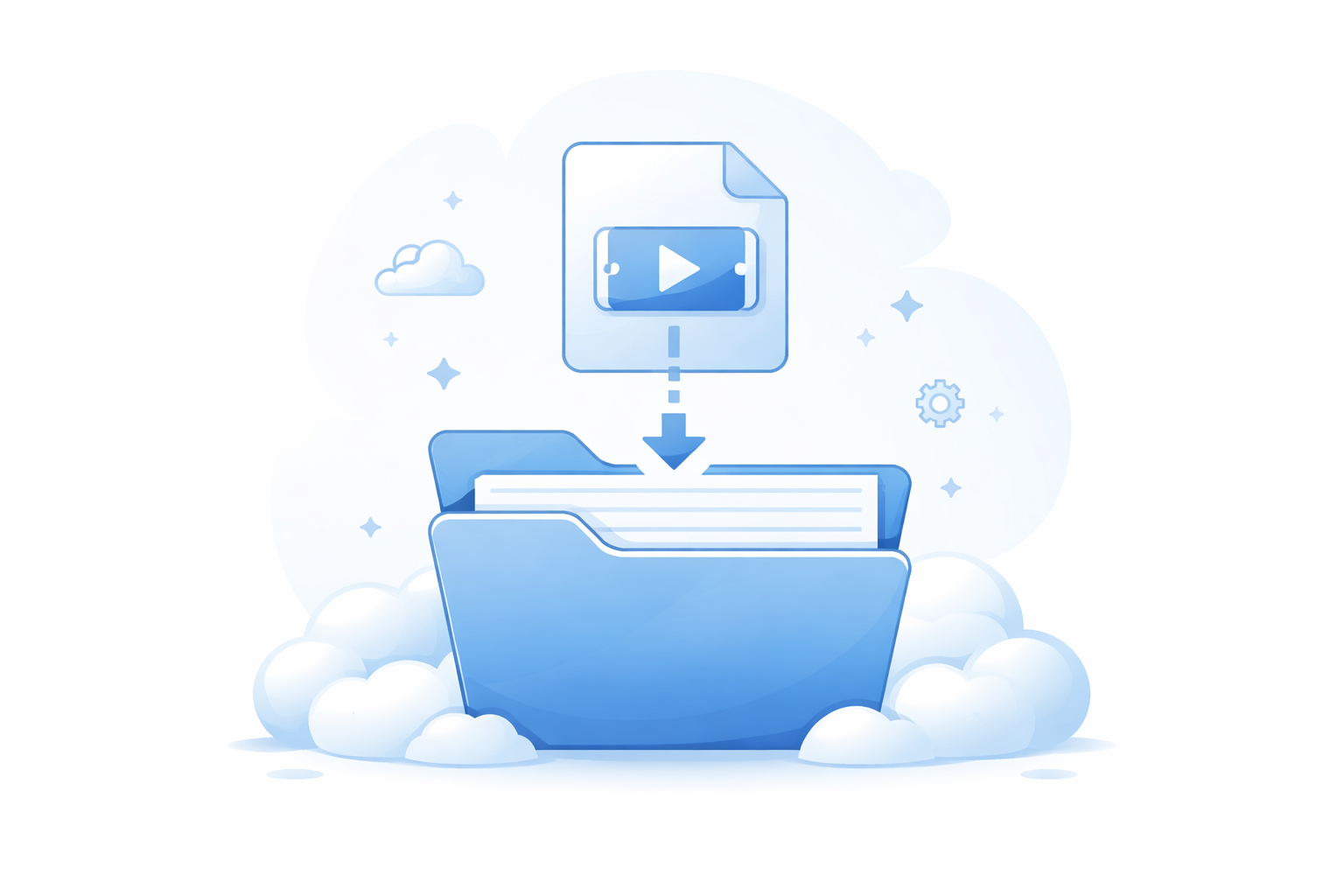
- Once processed, the recording is saved to:
- The meeting host's Google Drive: In a folder called "Meet Recordings."
- The organizer's Google Calendar event: It is attached as a link within the calendar entry.
- An email link: The host and the person who initiated the recording (if different) will receive an email with the direct link.
Alternative Methods for Personal Accounts & Advanced Needs
What if you don't have a Google Workspace account, or you need more flexibility than the native tool offers? Here are reliable alternatives.
Using Built-in Screen Recorders (macOS & Windows): Both major operating systems have free, built-in screen recording software.
- macOS: Use QuickTime Player. Open it, select "File" > "New Screen Recording," choose your microphone (e.g., "Google Meet Audio"), and capture your screen and audio.
- Windows 10/11: Use the Xbox Game Bar (Win + G). Enable recording for your browser window and microphone. Ensure you have "Record audio" checked in the Capture settings.
Third-Party Screen Recording Software: Tools like OBS Studio (free, open-source), Riverside.fm, or Camtasia offer superior control over sources, quality, and multi-track audio. They are excellent for creating polished content from your meetings.
Browser Extensions: Several reputable extensions in the Chrome Web Store can record browser tabs. Always exercise caution: choose extensions with strong privacy policies, as they may have access to your meeting content.
How to Record a Google Meet (2026 Complete Guide)
Best Practices for High-Quality Google Meet Recordings
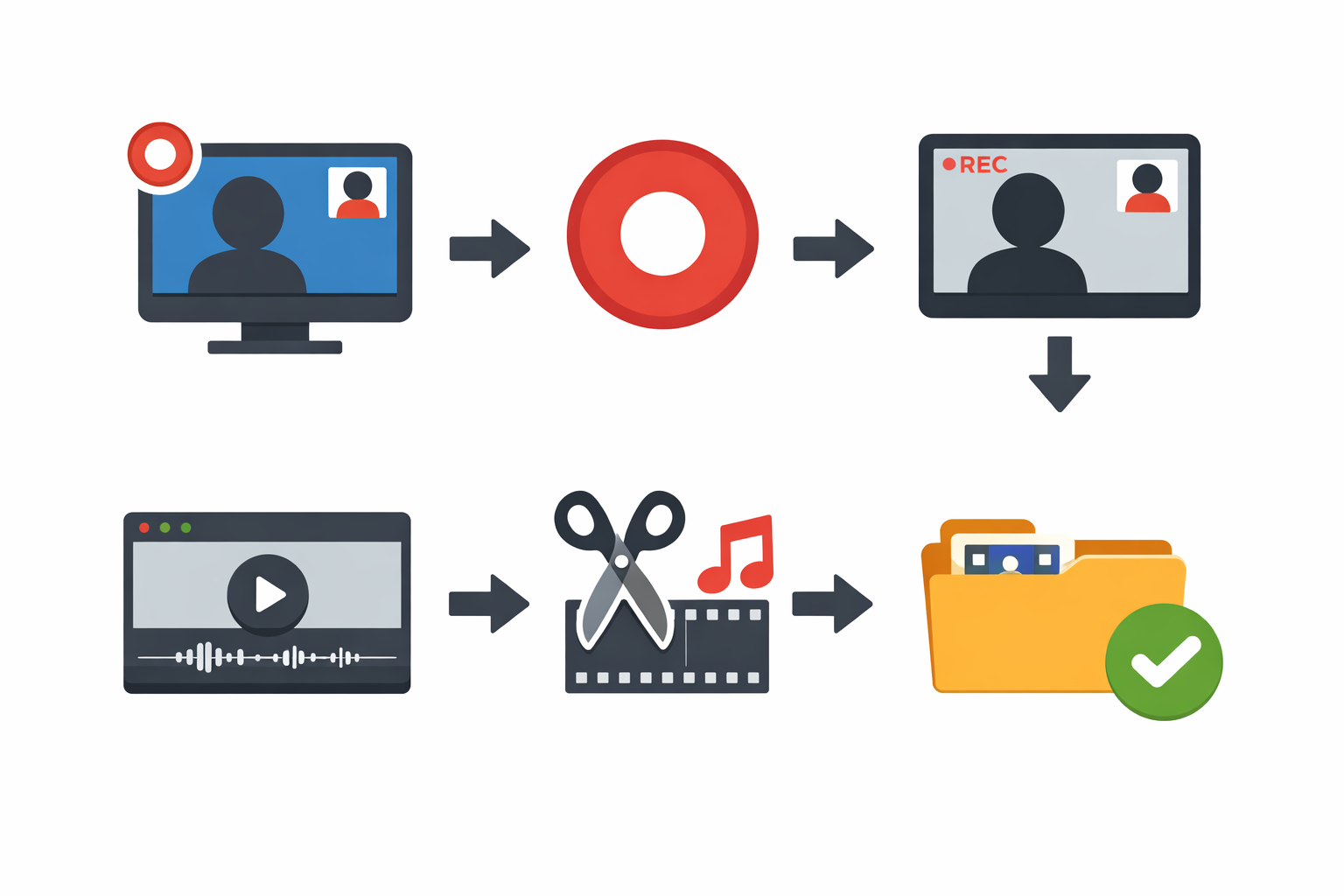
Getting a recording is one thing; getting a useful recording is another. Follow these tips for professional results.
- Announce Your Intentions: Even though Google does it automatically, verbally inform participants at the start that you plan to record. This fosters transparency and trust.
- Optimize Audio Quality: Encourage participants to use headphones to reduce echo and find a quiet space. The recording's audio quality is paramount.
- Present Strategically: When sharing your screen, close unnecessary tabs and notifications. Use "Present a tab" instead of "Your entire screen" to avoid accidental exposure of private information.
- Manage the Recording: Designate a co-host to manage the recording if you'll be the primary speaker. This allows them to start/stop it and monitor for issues.
- Post-Meeting Organization: Rename your recording file in Google Drive immediately. Add it to a shared team drive or relevant project folder for easy access. Consider adding a brief description in the file's "Details" section.
From Recording to Actionable Insights: The Power of Transcription
A video recording is a great archive, but it's not easily searchable or scannable. This is where the real magic happens post-meeting. Converting your Google Meet recording into a text transcript unlocks its full potential.
A transcript allows you to:
- Search for specific topics, decisions, or action items in seconds.
- Share concise notes with stakeholders without requiring them to watch an hour-long video.
- Create subtitles for the recording, improving accessibility and viewer comprehension.
- Extract key quotes for reports, social media, or highlight reels.
While Google Drive can generate auto-captions for the video file, they are often basic and lack punctuation or speaker identification. For accurate, formatted, and usable transcripts, a dedicated service is far superior.
This is where a tool like AudioScribe excels. You can upload your Google Meet recording file (MP4 from Google Drive) directly to AudioScribe. It will quickly generate a highly accurate transcript with proper punctuation and speaker differentiation. You can then edit, highlight, and export the text in various formats, turning a passive recording into an active knowledge asset. For teams that rely on their meeting archives, using a transcription service is a game-changer for productivity.
Frequently Asked Questions (FAQ)
Q: Can I record a Google Meet without the host knowing? A: No, not using the native feature. The host has exclusive control to start/stop the recording, and all participants are notified visibly and audibly when recording begins. Using external screen recording software without explicit consent from all participants is unethical and may violate privacy laws or company policies.
Q: Where does Google Meet save the recording? A: It is saved directly to the meeting host's Google Drive in a "Meet Recordings" folder, and a link is added to the original Calendar event. The host controls the sharing permissions.
Q: How long does Google Keep the recordings? A: For Google Workspace users, recordings do not automatically expire and will remain in the host's Drive indefinitely, subject to the organization's storage limits and retention policies. The host can manually delete them at any time.
Q: Can I record only a specific part of a Google Meet or only audio? A: The native recording function does not offer selective recording or audio-only mode. It records the entire session (video, audio, presentation). For more granular control, you would need to use external screen recording software, which often allows you to select specific audio sources and record only a clip.
Q: What should I do if the "Record meeting" option is missing? A: First, confirm you are the host or a designated co-host. If you are, the issue is likely at the administrative level. Your Google Workspace admin may have disabled the recording feature for your entire organization or for your specific account type. Contact your IT department for clarification.
Recording your Google Meet sessions ensures that valuable discussions and information are never lost. By following this guide, you can confidently capture your meetings, adhere to best practices, and manage your recordings effectively. Remember, the true value of a recording is unlocked when you can search, share, and utilize its content easily.
Ready to transform your Google Meet recordings into searchable, editable text? Try AudioScribe free at AudioScribe and experience the power of accurate transcription.